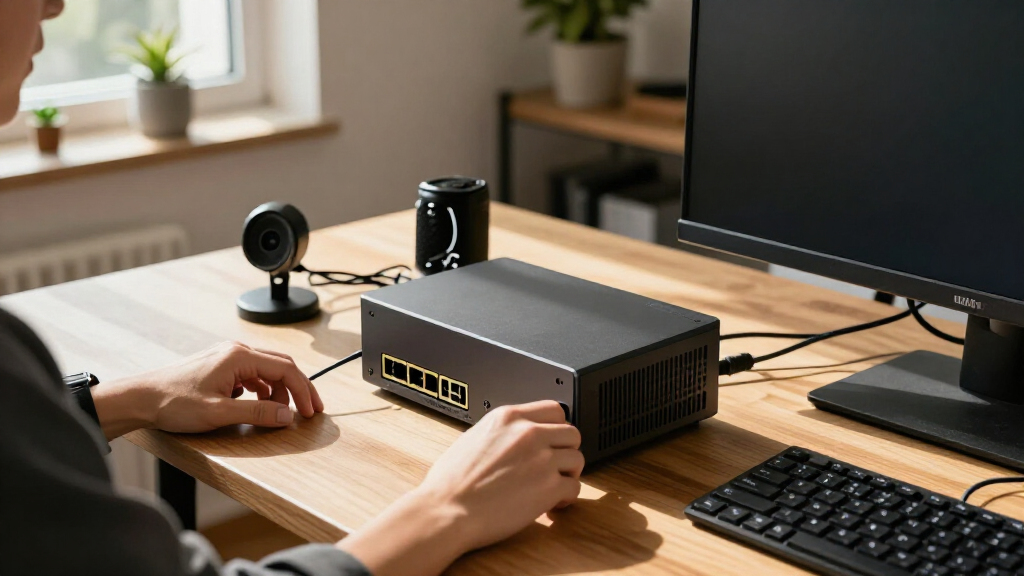

AI workstation computer
The workstation is the foundation of an AI automation setup: its operating system, processor, memory, storage, and expansion options shape which tools and workloads it can support. Begin with the software you intend to use and check its documented requirements. Some workflows may run locally, while others rely on remote services; those paths can call for different hardware. Avoid choosing a machine based on a vague label such as “AI-ready” without checking what it actually supports. A common mistake is to focus on one component while overlooking the rest of the system. A graphics card may need suitable power, cooling, clearance, and a compatible motherboard, while memory and storage needs depend on the applications and datasets involved. Check the case dimensions and available connections before planning upgrades. If you expect to expand later, verify that the system has room and compatible interfaces for those additions. Use a written requirements list to compare complete configurations rather than isolated component names. Confirm the operating system and software support, available ports, physical dimensions, and upgrade path from the manufacturer. Leave room in the plan for peripherals and backup storage. This checklist includes no workstation product pick, so treat this slot as advice for narrowing your requirements before selecting a system.What to look for:
- Documented requirements for your intended AI software and automation tools
- Processor, memory, and storage specifications that match those requirements
- Compatible expansion slots, ports, and upgrade options
- Case clearance, cooling, and power capacity for planned components
- Manufacturer confirmation of operating system and component compatibility
GPU accelerator card
A graphics card can be a central part of a workstation plan, but this listed pick is a support accessory: “GPU Support Bracket White, Adjustable Anti-Sag Aluminum Video Card Hol.” Its role is indicated by the product name, so evaluate it as a physical support item rather than as an accelerator. Whether a bracket is useful depends on the installed card, case layout, and mounting arrangement; confirm those details before treating it as a match. The common buying mistake here is assuming that a support bracket fits every graphics card or case. Check the bracket’s adjustment range and mounting method in the full product documentation, then compare them with the card’s dimensions and the available space inside the case. Make sure nearby fans, cables, and other components will not obstruct installation. The supplied name does not establish measurements or compatibility, so verify both directly with the manufacturer or seller. If you are selecting an actual GPU as well, assess that card separately against your software requirements, system power, cooling, motherboard, and case clearance. Do not count the bracket as a graphics accelerator or infer performance from its name. For a stable build, confirm that the support point can meet the card without putting pressure on fans or connectors, and follow the installation guidance for both components.What to look for:
- Adjustment range matched to the card and case layout
- Mounting method compatible with the case interior
- Clearance from fans, cables, and neighboring components
- Product documentation confirming supported card dimensions
- Separate GPU specifications verified against software and workstation requirements
GPU Support Bracket White, Adjustable Anti-Sag Aluminum Video Card Holder with M

This all-aluminum GPU support bracket provides strong, long-lasting support for graphics cards, preventing sagging. It features adjustable height from 72 to 117mm, easy tool-free installation with magnets, and includes a bubble level for proper alignment.
Pros:
- Durable all-aluminum construction
- Adjustable height for compatibility with various chassis
- Easy to install without tools, with magnetic base for stability
- Includes bubble level for precise alignment
Cons:
- Limited to support height up to 117mm
- Requires checking compatibility with specific graphics cards
- Magnet-based installation may not suit all chassis types
Best for: Builders who need to confirm physical support for a graphics card
Not ideal for: Anyone looking for a GPU accelerator card itself
Bottom line: This pick is a support bracket by name, so verify case and card fit and choose an accelerator separately.
Network attached storage
Network attached storage can give a setup a shared place for files, but the right choice depends on how your devices and applications access that storage. The listed pick is “Nimo AI NAS, Agentic Computer AI Server, AMD Ryzen 7 PRO, 32GB DDR5 RA.” Its name presents it as an AI NAS or server and includes processor and memory details, but it does not establish storage capacity, drive configuration, network connections, software support, or compatibility with your tools. A common mistake is to assume that a product label answers practical questions about storage and networking. Before choosing it, check the full specification sheet for drive bays, supported drive types, usable capacity, network ports and speeds, backup options, and supported file-sharing protocols. Confirm that the computers and applications in your workflow can connect as expected. If you intend to run software directly on the device, verify its operating system and supported workloads rather than inferring those from “AI” or “Agentic Computer” in the name. Plan how files will be organized, backed up, and accessed before setting up shared storage. Check whether the device fits your network and whether its documented capacity and expansion options meet your needs. Confirm included components and setup requirements from the complete listing. The product name alone is not enough to determine whether it can replace a workstation or serve as storage for a particular automation workflow.What to look for:
- Drive bays, supported drive types, and usable capacity
- Network ports, speeds, and supported file-sharing protocols
- Backup, recovery, and storage expansion options
- Operating system and software support for intended workloads
- Compatibility with existing computers and network equipment
Nimo AI NAS, Agentic Computer AI Server, AMD Ryzen 7 PRO, 32GB DDR5 RAM
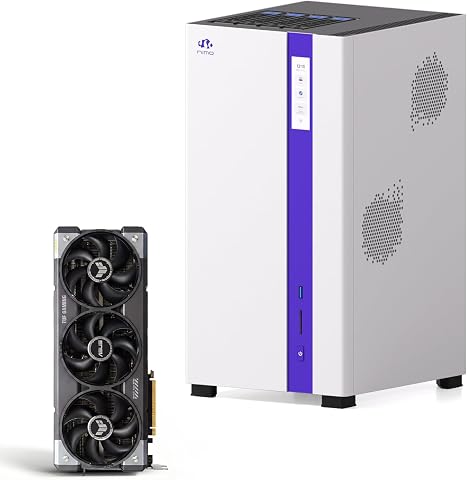
This high-performance AI server is designed for developers, researchers, and media professionals. It supports local large language models, 4K/8K video editing, 3D rendering, and virtualization, with expandable storage and robust networking capabilities.
Pros:
- Powerful hardware optimized for AI, media, and virtualization tasks
- Supports large storage capacity and high-speed networking
- Expandable and future-proof design
Cons:
- Complex setup may require technical expertise
- Potentially high cost for advanced features
- Limited consumer-oriented features
Best for: Buyers evaluating a named AI NAS or server for shared files
Not ideal for: Anyone choosing solely from the product name
Bottom line: Confirm capacity, network support, and software compatibility in the complete specifications.
Uninterruptible power supply
A UPS can provide battery backup and power management for connected equipment, making it worth evaluating as part of a workstation setup. The listed pick is “CyberPower PR1500LCDN 15A Smart App Sinewave UPS Battery Backup.” Its name identifies a UPS and mentions a 15A designation, app features, and a sinewave description. Those terms are not a substitute for checking the complete documentation and matching the unit to the equipment you plan to connect. A frequent mistake is choosing a UPS without totaling the load of the devices that will be plugged into it. Check the manufacturer’s capacity and runtime information against the workstation, storage, and other equipment you want protected. Confirm outlet types and counts, battery-backed versus surge-only outlets, input requirements, and any documented management features. Verify that the UPS can physically fit where you intend to install it and that its connection options work with your devices. Decide which equipment should remain powered during an outage and which can shut down. That helps you prioritize outlets and understand the runtime information relevant to your setup. Follow the manufacturer’s guidance on placement, connection, and battery maintenance. The product name does not establish how long it can run a particular system or which devices it can safely support, so use published specifications and your equipment’s requirements to make that determination.What to look for:
- Capacity and runtime matched to the connected equipment load
- Outlet count and types, including battery-backed connections
- Input and output requirements compatible with the installation
- Documented app or management support for intended devices
- Placement, connection, and battery maintenance guidance
CyberPower PR1500LCDN 15A Smart App Sinewave UPS Battery Backup

The CyberPower PR1500LCDN is a 1500VA/1500W sinewave UPS designed to support active PFC and conventional power supplies. It features an extendable LCD panel, automatic voltage regulation, and multiple outlets for safeguarding servers and network devices.
Pros:
- Supports active PFC and conventional power supplies
- Removable LCD panel for easy viewing in hard-to-reach places
- Automatic voltage regulation extends battery life
- Includes a 3-year warranty and remote monitoring software
Cons:
- No specific price information available
- Requires installation space for LCD panel
- Limited to NEMA 5-15R outlets
Best for: Setups that need a UPS selected around connected equipment
Not ideal for: Buyers who have not checked device load or outlet needs
Bottom line: Compare documented capacity, runtime, and outlet layout with the equipment you plan to protect.
USB audio interface
An audio interface can be useful when a setup includes a microphone or other audio equipment, and the listed pick is “Focusrite Scarlett 2i2 Studio 4th Gen USB-C Audio Interface Bundle.” The product name identifies an audio interface bundle with USB-C, but it does not provide a complete inventory of included accessories, supported operating systems, or connection details. Check the full listing to see whether its components suit the recording or communication tasks you have in mind. A common buying mistake is assuming that USB-C by itself guarantees compatibility with every computer, cable, or audio workflow. Confirm the required connection, included cable, driver or software support, and operating system compatibility from the manufacturer. Check the available inputs and outputs against your microphone, headphones, speakers, or other gear. If you need a particular microphone connection or monitoring setup, compare that need with the documented interface specifications before buying. Also consider where the interface will sit and how its controls and cables will fit into your workspace. A bundle may include items that are useful for one setup and unnecessary for another, so confirm each included component rather than relying on the word “Studio.” Match the interface to your current equipment and planned use, and verify that your computer has a compatible port or supported adapter arrangement.What to look for:
- Documented operating system, driver, and software support
- Inputs and outputs compatible with microphones and listening gear
- USB-C connection and included cable details
- Bundle contents matched to the intended audio workflow
- Physical placement and cable reach in the workspace
Focusrite Scarlett 2i2 Studio 4th Gen USB-C Audio Interface Bundle
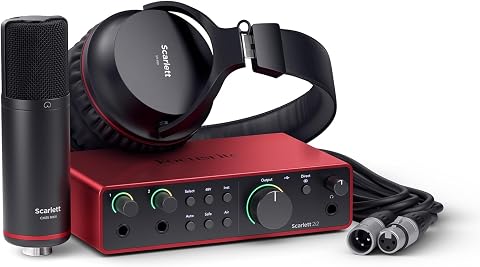
This recording bundle includes a two-channel USB audio interface, CM25 MkIII condenser microphone, SH-450 headphones, and recording software. The interface features a 120 dB dynamic range, 192 kHz maximum sample rate, Auto Gain, Clip Safe, and Air mode for vocals and guitars.
Pros:
- Includes microphone, headphones, and recording software
- 120 dB dynamic range and 192 kHz maximum sample rate
- Auto Gain and Clip Safe help manage recording levels
- Air mode adds presence to vocals and guitars
Cons:
- Availability can vary
Best for: Users adding an interface to a USB-C audio setup
Not ideal for: Anyone who has not checked bundle contents and connections
Bottom line: Verify the included components, ports, and computer support against your audio equipment.
KVM switch
A KVM switch can help manage more than one computer from shared keyboard, video, and mouse equipment. The listed pick is “Belkin 4-Port Secure Dual-Monitor KVM Switch, DisplayPort/HDMI.” Its name indicates four ports, dual-monitor support, and DisplayPort and HDMI connections. Confirm the detailed port layout and supported display configurations before deciding that it works with your computers and monitors. A common mistake is treating “dual-monitor” as proof that every pair of displays will work at its preferred resolution and refresh rate. Check the switch’s supported display specifications, input and output connections, and cable requirements against every computer and monitor in the setup. Confirm whether the devices use the required DisplayPort or HDMI connections and whether any adapters are supported. Also verify how the keyboard, mouse, and other peripherals connect, and review what “secure” means in the product documentation for your needs. Count the computers you plan to connect and map each video and USB connection before installation. Confirm that the switch’s stated port count refers to the configuration you expect, and check whether switching controls or any required accessories are included. Keep enough cable length for the layout without creating strain at the ports. The product name is a useful starting point, but full compatibility depends on the exact computer outputs, monitor inputs, and documented display support.What to look for:
- Port count and computer connections for the intended setup
- Supported dual-monitor resolutions and refresh rates
- DisplayPort and HDMI input/output arrangement
- USB connections for keyboard, mouse, and peripherals
- Included cables, adapters, and switching controls
Belkin 4-Port Secure Dual-Monitor KVM Switch, DisplayPort/HDMI

This secure KVM switch connects up to four host computers to two displays and supports DisplayPort/HDMI video at up to 4K resolution and 60 Hz. It is designed for NIAP Protection Profile 4.0 compliance and uses isolated, unidirectional data paths, USB device detection, and tamper-evident labeling to help protect connected systems.
Pros:
- Supports two displays and up to four host computers
- Supports 4K video at 60 Hz
- Isolated, unidirectional data paths and USB device detection help protect connected systems
- Tamper-evident labeling and packaging
Cons:
- Remote control and under-counter mounting are optional
- The raw listing does not clearly specify included cables
Best for: Users sharing two monitors across multiple computers
Not ideal for: Setups with unverified video outputs or display requirements
Bottom line: Confirm each computer, monitor, and peripheral connection against the switch documentation.
Halloween Picks
halloween
As an affiliate, we earn on qualifying purchases.