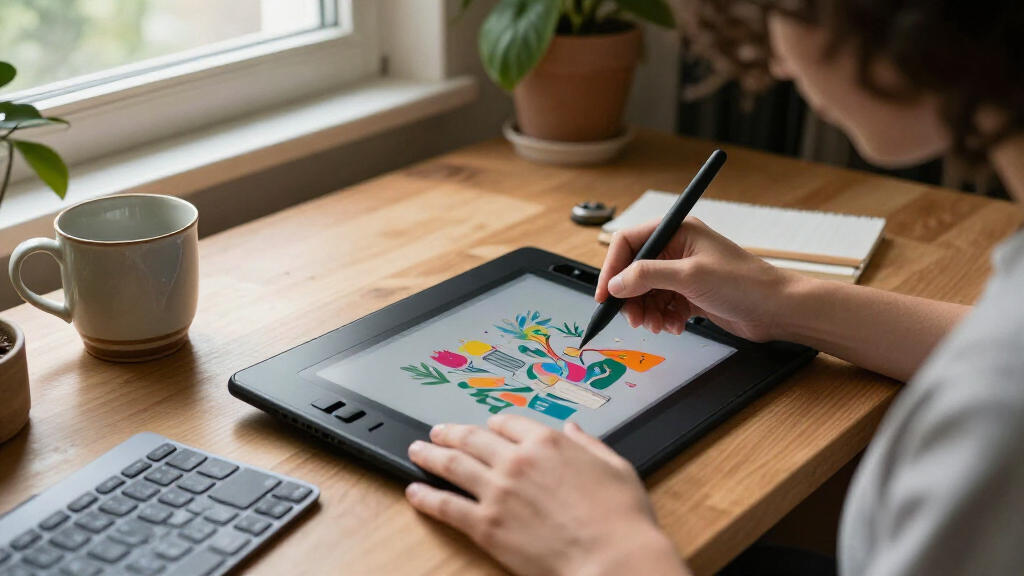

The HUION Kamvas 13 (Gen 3) is my best overall drawing tablet pick for artists who want a screen, useful dial controls, and room to grow. The HUION Inspiroy H1060P is a strong value choice if you already have a computer and prefer a larger screenless work area, while the Frunsi RubensTab T11 Pro suits artists who want a standalone device. The main tradeoff is between drawing directly on a display, using a more affordable pen tablet with a separate computer screen, or paying for a self-contained tablet. Size, software compatibility, portability, and shortcut controls can matter as much as pen specifications. Read on for how these eight options differ and which one best fits your setup.

Get business pricing on tech for your team
- Business-only prices and quantity discounts
- Tax-exempt purchasing
- Multiple users, one account, clear invoices
Key Takeaways
- The Kamvas 13 (Gen 3) leads for a computer-connected screen tablet, pairing a display with dual dials; it still depends on a compatible computer and a suitable connection.
- The H1060P offers more drawing area than the compact H640P and Wacom Intuos Small, making it a better fit for broad arm movements and customizable shortcuts.
- The H640P and Intuos Small favor portability over workspace; their compact surfaces are convenient, but may feel restrictive for detailed or large gestures.
- The two XP-Pen Artist 13.3 Pro V2 listings appear to describe closely related screen tablets, so buyers should compare the exact included accessories and specifications rather than assume the names alone reveal a meaningful difference.
- The Frunsi RubensTab T11 Pro and PicassoTab A10 offer standalone use, avoiding a computer connection for supported tasks, but software flexibility and workflow may differ from computer-based tablets.
| HUION Kamvas 13 (Gen 3) 13.3-Inch Drawing Pen Display with Dual Dial and Stand |  | Best Overall Pen Display | Screen size: 13.3 inches | Display: Fully laminated Canvas Glass 2.0 | Pressure sensitivity: 16,384 levels | VIEW LATEST PRICE | See Our Full Breakdown |
| XPPen Artist 13.3 Pro V2 Drawing Tablet with Screen |  | Best for Tilt Shading | Screen size: 13.3 inches | Display: Fully laminated FHD | Color gamut: 123% sRGB, 88% NTSC | VIEW LATEST PRICE | See Our Full Breakdown |
| HUION Inspiroy H640P 6 × 4-Inch Drawing Tablet with Battery-Free Stylus |  | Best Compact Budget-Style Pick | Active area: 6 × 4 inches | Stylus: PW100 battery-free pen | Pressure sensitivity: 8,192 levels | VIEW LATEST PRICE | See Our Full Breakdown |
| HUION Inspiroy H1060P Graphics Drawing Tablet, 10 × 6.25 in |  | Best Screenless Tablet for Shortcut Control | Working area: 10 × 6.25 inches | Stylus: PW100 battery-free stylus | Tilt support: ±60 degrees | VIEW LATEST PRICE | See Our Full Breakdown |
| XP-Pen Artist 13.3 Pro V2 Drawing Tablet with Screen, 16K Pressure Levels, Red Dial and 8 Shortcut Keys |  | Best for Color-Focused Work | Screen size: 13.3 inches | Resolution: Full HD | Display: Full-laminated IPS panel with anti-glare film | VIEW LATEST PRICE | See Our Full Breakdown |
| Wacom Intuos Small Wired Drawing Tablet with Pen |  | Best for Desktop Beginners | Model: Intuos Small (CTL4100) | Connection: Wired USB-A | Pen: Wacom Pen 4K, battery-free | VIEW LATEST PRICE | See Our Full Breakdown |
| Frunsi RubensTab T11 Pro Standalone Drawing Tablet |  | Best for Portable Standalone Drawing | Display: 10.1-inch Full HD IPS, 1920 × 1200 | Battery: 5800 mAh; up to 5 hours of use | Charging: USB-C | VIEW LATEST PRICE | See Our Full Breakdown |
| PicassoTab 10″ Standalone Drawing Tablet (A10) |  | Best Standalone Pick for Tutorials and Storage | Display: 10-inch laminated LCD, 2000 × 1200 | Operating system: Android 14 | Processor: Octa-core | VIEW LATEST PRICE | See Our Full Breakdown |
| drawing tablet | Compatibility | Display | Connectivity |
|---|---|---|---|
| HUION Kamvas 13 | Windows 10 or later, macOS 10.12 or later, compatible Android devices, Ubuntu 20.04 LTS | Fully laminated Canvas Glass 2.0 | 3-in-1 cable or full-featured USB-C |
| XPPen Artist 13.3 Pro V2 Drawi | Windows 7 or later, Mac OS X 10.10 or later, Chrome OS 88 or later, Linux | Fully laminated FHD | 3-in-1 cable |
| HUION Inspiroy H640P 6 × 4-Inc | Mac, Windows, Linux, Android 6.0 or later | — | — |
| HUION Inspiroy H1060P Graphics | Windows 7 or later, macOS 10.12 or later, Android 6.0 or later, Ubuntu with Xorg | — | — |
| XP-Pen Artist 13.3 Pro V2 Draw | Windows 7 or later, macOS 10.13 or later, Chrome OS 88 or later, compatible Android USB-C devices, Linux with driver support | Full-laminated IPS panel with anti-glare film | — |
| Wacom Intuos Small Wired Drawi | Mac, Windows, Chromebook, and select Android devices | — | — |
| Frunsi RubensTab T11 Pro Stand | — | 10.1-inch Full HD IPS, 1920 × 1200 | Wi-Fi |
| PicassoTab 10" Standalone Draw | — | 10-inch laminated LCD, 2000 × 1200 | Wi-Fi |
More Details on Our Top Picks
HUION Kamvas 13 (Gen 3) 13.3-Inch Drawing Pen Display with Dual Dial and Stand
The Kamvas 13 (Gen 3) is my strongest all-around choice for artists who want to draw directly on screen without paying for controls they may not use. Its fully laminated Canvas Glass 2.0 reduces the gap between pen tip and cursor, while the 2 g activation force suits light, controlled strokes. Compared with the XP-Pen Artist 13.3 Pro V2, it offers dual dials rather than one red dial, giving more hands-on control over tasks such as zooming and brush adjustments. The tradeoff is that its stated color coverage is narrower than the XP-Pen’s, so color-focused work may favor that model. This is a connected pen display, not a standalone tablet, and Android use depends on specific USB-C video support.
Pros:- Laminated anti-glare glass helps keep the cursor close to the pen tip.
- Dual dials and five programmable keys provide flexible on-device controls.
- Low 2 g activation force and 16,384 pressure levels support responsive strokes.
- Includes an adjustable stand and supports Windows, macOS, compatible Android devices, and Ubuntu.
Cons:- Requires a connected computer or compatible Android device to work.
- Android support requires USB 3.1 Gen 1 and DP 1.2 compatibility.
- Its 99% sRGB coverage is below the stated gamut coverage of the XP-Pen Artist 13.3 Pro V2 models.
Best for: Digital illustrators who want a 13.3-inch screen, tactile controls, and a stand for a computer-based drawing setup.
Not ideal for: Artists who need a standalone device, broadest stated color gamut, or Android connectivity without checking USB and DisplayPort support.
- Screen size:13.3 inches
- Display:Fully laminated Canvas Glass 2.0
- Pressure sensitivity:16,384 levels
- Initial activation force:2 g
- Color coverage:99% sRGB
- Controls:5 programmable keys and dual dial buttons
- Connectivity:3-in-1 cable or full-featured USB-C
- Compatibility:Windows 10 or later, macOS 10.12 or later, compatible Android devices, Ubuntu 20.04 LTS
- Included stand:Adjustable ST300 stand
Our verdict“Choose the Kamvas 13 (Gen 3) for a well-equipped screen tablet with dual dials, but pick an XP-Pen Artist 13.3 Pro V2 if wider stated color coverage matters more.”
XPPen Artist 13.3 Pro V2 Drawing Tablet with Screen
The XP-Pen Artist 13.3 Pro V2 suits artists who want a pen display whose stylus supports natural shading gestures. Its 60-degree tilt support can make broad, angled strokes feel more intuitive, while the laminated FHD screen reduces the visible gap between nib and cursor. Compared with the HUION Kamvas 13 (Gen 3), this model has eight shortcut keys and a red dial, rather than five keys and dual dials; that layout may be easier for artists who want a row of assignable commands plus one central control. Its stated 123% sRGB coverage also exceeds the HUION’s 99% sRGB figure. The tradeoff is the single dial, and, like the Kamvas, it needs a connected computer rather than working on its own.
Pros:- 60-degree stylus tilt support helps with angled shading and varied strokes.
- Fully laminated FHD display minimizes the apparent gap between pen and cursor.
- Eight customizable keys and a red dial offer quick access to drawing controls.
- Supports Windows, Mac, Chrome OS, and Linux.
Cons:- Must connect to a computer or laptop; it does not operate standalone.
- Has one red dial, while the HUION Kamvas 13 (Gen 3) provides dual dials.
- The supplied 3-in-1 cable setup may be less convenient than a single-cable drawing station.
Best for: Illustrators who use tilt-based shading and want a 13.3-inch pen display with several shortcut keys and broad stated sRGB coverage.
Not ideal for: Artists seeking a standalone tablet, dual-dial controls, or a drawing surface that works without a computer connection.
- Screen size:13.3 inches
- Display:Fully laminated FHD
- Color gamut:123% sRGB, 88% NTSC
- Stylus:Battery-free, 60-degree tilt support, 220 RPS
- Shortcut controls:8 customizable keys and 1 red dial
- Connectivity:3-in-1 cable
- Compatibility:Windows 7 or later, Mac OS X 10.10 or later, Chrome OS 88 or later, Linux
- Included stand:Foldable stand
Our verdict“Pick this Artist 13.3 Pro V2 if tilt shading and eight shortcut keys suit your workflow better than the Kamvas 13’s dual dials.”
HUION Inspiroy H640P 6 × 4-Inch Drawing Tablet with Battery-Free Stylus
The Inspiroy H640P is the practical pick for a small desk, travel bag, or occasional drawing and annotation—not for artists who need a large canvas. Its 6 × 4-inch active area keeps the tablet compact, and the 0.61-pound body is easier to carry than the 10 × 6.25-inch HUION Inspiroy H1060P. Both use battery-free pens with 8,192 pressure levels, but the H1060P gives the drawing hand much more room and a larger bank of controls. The H640P counters with six customizable shortcut keys and a thin, portable build. It works with compatible Android devices as well as desktop systems, but it does not support iPhone or iPad. Without a screen, you draw on the tablet while watching the connected device.
Pros:- Compact 6 × 4-inch active area and 0.61-pound weight suit portable setups.
- Battery-free stylus offers 8,192 pressure levels.
- Six customizable shortcut keys support common drawing and navigation actions.
- Compatible with Mac, Windows, Linux, and Android 6.0 or later.
Cons:- The small active area can feel restrictive for broad gestures or detailed work.
- It has no screen, so users must look at the connected device while drawing.
- Does not support iPhone or iPad.
Best for: Students, note-takers, and beginner artists who want a lightweight pen tablet for a laptop or compatible Android device.
Not ideal for: Artists who prefer a large drawing surface, need a built-in display, or plan to use an iPhone or iPad.
- Active area:6 × 4 inches
- Stylus:PW100 battery-free pen
- Pressure sensitivity:8,192 levels
- Resolution:5,080 LPI
- Report rate:233 PPS
- Shortcut keys:6 customizable keys
- Dimensions:0.3 inches thick; 0.61 lbs
- Compatibility:Mac, Windows, Linux, Android 6.0 or later
Our verdict“Choose the H640P for portable, screenless drawing and note-taking; step up to the H1060P if you want more working space.”
HUION Inspiroy H1060P Graphics Drawing Tablet, 10 × 6.25 in
The HUION Inspiroy H1060P is the stronger screenless choice for artists who want a roomy working area and extensive shortcut customization. Its 10 × 6.25-inch surface gives the hand more space than the H640P’s compact 6 × 4-inch area, while 12 press keys and 16 soft keys can put frequent commands within reach. The battery-free stylus also supports ±60-degree tilt, a capability not listed for the smaller H640P. These advantages make the H1060P better suited to longer sessions and customized workflows, but they come with a larger footprint and no display: the connected monitor remains the visual reference. Compatibility needs checking too; Ubuntu use requires Xorg, and iPhone and iPad are unsupported.
Pros:- 10 × 6.25-inch working area offers more room than the HUION H640P.
- 12 press keys and 16 soft keys allow extensive shortcut customization.
- Battery-free stylus supports ±60-degree tilt and 8,192 pressure levels.
- Symmetrical design accommodates right- and left-handed users.
Cons:- No built-in display; drawing takes place on the tablet while viewing a separate screen.
- Ubuntu support requires the Xorg display server and does not include Wayland.
- iPhone and iPad are unsupported, and Mac connection requires a USB adapter.
Best for: Desktop illustrators who want a broad screenless drawing area, many programmable controls, and left- or right-handed use.
Not ideal for: Travel-focused buyers who need a compact tablet, artists who want to draw directly on a screen, or Ubuntu users working on Wayland.
- Working area:10 × 6.25 inches
- Stylus:PW100 battery-free stylus
- Tilt support:±60 degrees
- Pressure sensitivity:8,192 levels
- Programmable keys:12 press keys and 16 soft keys
- Compatibility:Windows 7 or later, macOS 10.12 or later, Android 6.0 or later, Ubuntu with Xorg
- Included accessories:Micro USB cable, USB-C adapter, pen holder, 8 pen nibs
- Warranty:1 year
Our verdict“Choose the H1060P over the H640P when drawing room and configurable shortcuts matter more than portability.”
XP-Pen Artist 13.3 Pro V2 Drawing Tablet with Screen, 16K Pressure Levels, Red Dial and 8 Shortcut Keys
This Artist 13.3 Pro V2 is the color-focused option among these 13.3-inch pen displays. Its listed gamut—125% sRGB, 107% Adobe RGB, and 95% Display P3—is broader than the 99% sRGB stated for the HUION Kamvas 13 (Gen 3), making it the more compelling fit for artists who want wider color coverage. The laminated anti-glare panel and 16,384-level X3 Pro stylus add direct-on-screen drawing with a pressure-sensitive, battery-free pen. Workflow controls include eight customizable keys and a red dial, while the included stand adjusts up to 90 degrees. The tradeoffs are practical: it is not standalone, Android needs compatible USB-C video support, and color temperature adjustment is limited to Windows.
Pros:- Listed coverage of 125% sRGB, 107% Adobe RGB, and 95% Display P3 suits color-conscious work.
- Laminated anti-glare IPS panel reduces glare and the apparent pen-to-cursor gap.
- Battery-free X3 Pro stylus supports 16,384 pressure levels.
- Red dial, eight customizable keys, and stand adjustable up to 90 degrees support a configurable desk setup.
Cons:- Requires a connected computer or laptop and is not a standalone drawing tablet.
- Android use depends on compatible USB-C support; Linux use requires driver support.
- Color temperature adjustment is limited to Windows.
Best for: Illustrators and design students who prioritize broad stated color coverage, a laminated screen, and an adjustable stand in a computer-connected setup.
Not ideal for: Buyers who need a standalone tablet, rely on unsupported Android USB-C connections, or want Windows-independent color temperature controls.
- Screen size:13.3 inches
- Resolution:Full HD
- Display:Full-laminated IPS panel with anti-glare film
- Pen pressure:16,384 levels
- Color gamut:125% sRGB, 107% Adobe RGB, 95% Display P3
- Brightness and contrast:250 cd/m²; 1000:1
- Shortcut controls:Red dial and 8 customizable keys
- Included stand:Adjustable up to 90 degrees
- Compatibility:Windows 7 or later, macOS 10.13 or later, Chrome OS 88 or later, compatible Android USB-C devices, Linux with driver support
Our verdict“Choose this Artist 13.3 Pro V2 over the Kamvas 13 when its wider listed color coverage matters more than dual-dial controls.”
Wacom Intuos Small Wired Drawing Tablet with Pen
The Wacom Intuos Small is a sensible starting point for drawing on a computer, especially for buyers who want a familiar pen-and-tablet setup rather than a screen they draw directly on. Its battery-free pen avoids charging interruptions, while four ExpressKeys put common shortcuts within reach. Compared with the HUION Inspiroy H640P, this Wacom adds access to creative software and tutorials, which can help a new artist get started; both keep the drawing surface compact. That small active area suits quick sketches, photo edits, and a crowded desk, but may feel restrictive for broad arm movements or detailed work. The USB-A connection also keeps it tethered to a compatible device, unlike the standalone Frunsi RubensTab T11 Pro. I’d choose it for computer-based practice, not for drawing on the go without a host device.
Pros:- Battery-free pen avoids recharging and supports uninterrupted drawing.
- Four ExpressKeys provide quick access to common shortcuts.
- Compatible with Mac, Windows, Chromebook, and select Android devices.
- Includes access to creative software and online tutorials.
Cons:- Wired USB-A connection limits placement flexibility.
- Small drawing area can feel cramped for detailed or large gestures.
- Requires a compatible connected device rather than working independently.
Best for: New digital artists and photo editors who want a compact, computer-connected tablet with shortcut keys and beginner learning resources.
Not ideal for: Artists who want to draw directly on a screen, need a large working area, or want a wireless or standalone setup.
- Model:Intuos Small (CTL4100)
- Connection:Wired USB-A
- Pen:Wacom Pen 4K, battery-free
- Shortcut keys:4 ExpressKeys
- Compatibility:Mac, Windows, Chromebook, and select Android devices
- Included accessories:USB-A cable with L-shaped connector, 3 extra nibs, nib removal tool, quick start guide
- Warranty:1 year
Our verdict“Choose the Wacom Intuos Small for a compact, guided introduction to computer-based drawing, but pick a standalone tablet if you want to work without a host device.”
Frunsi RubensTab T11 Pro Standalone Drawing Tablet
The Frunsi RubensTab T11 Pro suits artists who want to sketch without connecting a computer: its drawing apps run on the tablet, and the 10.1-inch Full HD touchscreen gives the pen a direct on-screen surface. That makes it more self-contained than the Wacom Intuos Small, which depends on a separate compatible device and has no built-in display. Multi-touch support and the included adjustable stand case also make this a practical option for drawing, notes, and travel. The tradeoff is up to five hours of battery life, so longer sessions may call for charging breaks. Its screen is portable, but the modest workspace can constrain larger compositions; the PicassoTab A10 is another standalone alternative with a laminated screen and more detailed listed memory and storage specs. I’d favor the Frunsi for basic mobile drawing, not as a replacement for a larger desktop display setup.
Pros:- Runs drawing apps independently without a computer.
- 10.1-inch Full HD IPS display supports direct on-screen drawing.
- Battery-free pressure-sensitive pen requires no charging.
- Adjustable stand case is included for drawing and note-taking.
Cons:- Battery life is limited to up to 5 hours of use.
- 10.1-inch workspace may feel tight for larger projects.
- Standalone app setup may not match desktop software workflows.
Best for: Traveling beginners and casual sketchers who want a self-contained drawing screen with included stand and apps.
Not ideal for: Artists who need a large canvas, long unplugged sessions, or access to desktop-only illustration software.
- Display:10.1-inch Full HD IPS, 1920 × 1200
- Battery:5800 mAh; up to 5 hours of use
- Charging:USB-C
- Pen:Battery-free pressure-sensitive pen
- Connectivity:Wi-Fi
- Features:Multi-touch support and pre-installed drawing apps
- Included accessories:Digital pen, stylus, gloves, cleaning cloth, adjustable stand case
- Warranty:12 months
Our verdict“Pick the RubensTab T11 Pro for portable, computer-free sketching, provided its compact screen and limited battery life fit your sessions.”
PicassoTab 10″ Standalone Drawing Tablet (A10)
The PicassoTab A10 is the most learning-oriented standalone option here: it runs Android 14, includes five creative apps, and provides lifetime upgrades for two premium tutorial and drawing programs. Its 10-inch laminated display is designed to reduce glare and give the pen a more paper-like feel, while the listed 4096 pressure levels offer a defined pressure-sensitive input spec. Compared with the Frunsi RubensTab T11 Pro, the A10 lists more memory and expandable storage, which gives buyers more room for apps and files; the Frunsi, by contrast, specifies a 10.1-inch Full HD IPS screen and up to five hours of battery use. The A10’s Android environment still may not run high-end desktop illustration software, and its 64 GB base storage can fill up if projects and apps accumulate. I’d choose it for self-guided learning and portable drawing, not for a desktop-first professional workflow.
Pros:- Works as a standalone Android drawing tablet without a computer.
- Includes five creative apps and lifetime upgrades for two premium programs.
- Laminated display is designed for reduced glare and a paper-like feel.
- Expandable storage supports larger app and project libraries.
Cons:- Android may not support high-end desktop illustration software.
- 64 GB of built-in storage may fill quickly without expansion.
- 10-inch display limits workspace for complex or large compositions.
Best for: Learners and hobby artists who want a standalone Android drawing tablet with bundled creative apps, tutorials, and expandable file storage.
Not ideal for: Professionals who rely on desktop-only illustration software or buyers who need a larger drawing surface than a 10-inch screen.
- Display:10-inch laminated LCD, 2000 × 1200
- Operating system:Android 14
- Processor:Octa-core
- Memory:6 GB RAM
- Storage:64 GB, expandable to 1 TB
- Pen pressure sensitivity:4096 levels
- Connectivity:Wi-Fi
- Weight:1.5 kg
Our verdict“Choose the PicassoTab A10 for portable drawing with bundled learning tools and expandable storage, but stay with a computer-connected display tablet for desktop software workflows.”
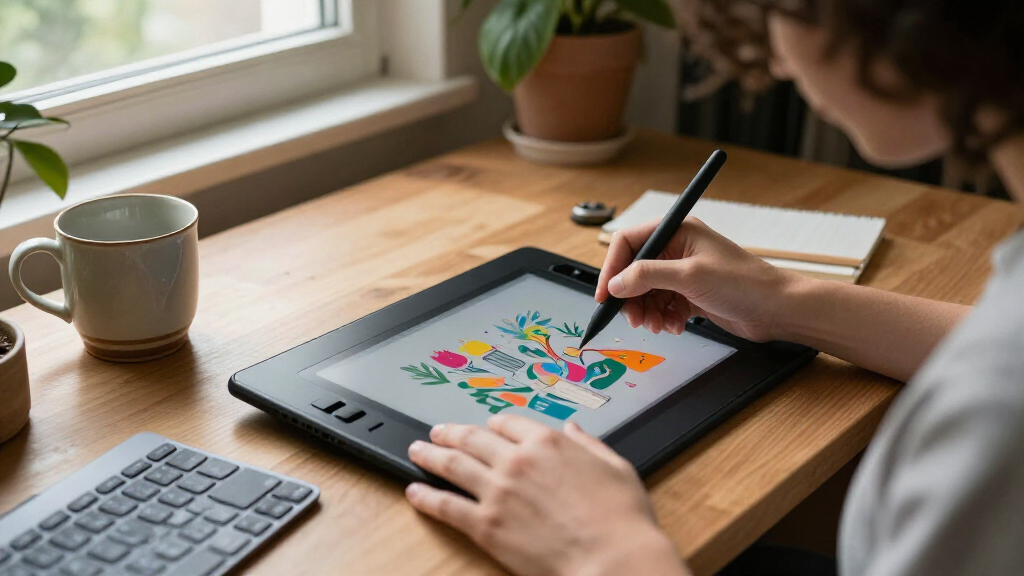
How We Picked
I compared these drawing tablets by the kind of drawing setup they support, how much workspace they provide, and what a buyer must connect or configure before creating. The ranking gives priority to practical fit: screen tablets for people who want to draw on the image, pen tablets for buyers who already work comfortably at a computer, and standalone models for those who value fewer cables. I also weighed controls, portability, stated pen features, and the likely learning curve rather than treating a higher specification as an automatic win.
The order reflects tradeoffs across the full lineup, not a claim that every product serves the same job. The Kamvas 13 (Gen 3) ranks first for its combination of direct-on-screen drawing and added controls; the H1060P follows as a larger, computer-dependent value option. Compact pen tablets rank lower for limited work area, while standalone tablets suit a narrower need and merit a separate comparison of supported apps and workflow. The duplicated XP-Pen product names are treated cautiously: buyers should verify the exact version and package before choosing between those listings.
| drawing tablet | Compatibility |
|---|---|
| HUION Kamvas 13 | Windows 10 or later, macOS 10.12 or later, compatible Android devices, Ubuntu 20.04 LTS |
| XPPen Artist 13.3 Pro V2 Drawi | Windows 7 or later, Mac OS X 10.10 or later, Chrome OS 88 or later, Linux |
| HUION Inspiroy H640P 6 × 4-Inc | Mac, Windows, Linux, Android 6.0 or later |
| HUION Inspiroy H1060P Graphics | Windows 7 or later, macOS 10.12 or later, Android 6.0 or later, Ubuntu with Xorg |
| XP-Pen Artist 13.3 Pro V2 Draw | Windows 7 or later, macOS 10.13 or later, Chrome OS 88 or later, compatible Android USB-C devices, Linux with driver support |
| Wacom Intuos Small Wired Drawi | Mac, Windows, Chromebook, and select Android devices |
| Frunsi RubensTab T11 Pro Stand | — |
| PicassoTab 10" Standalone Draw | — |
Factors to Consider When Choosing Drawing Tablets
Before choosing among drawing tablets, decide how you want the screen, pen, and software to work together. These factors can prevent a mismatch that no pressure rating or shortcut count can fix.
Choose Between a Screen, a Pen Tablet, and Standalone Use
A screen tablet lets you draw where you see the artwork, which can feel intuitive for sketching and precise placement. A pen tablet has no built-in display, so your hand works on one surface while the image appears on a computer monitor; that arrangement can take practice, but it can also keep your setup simpler and less expensive. A standalone tablet removes the computer from the drawing process for supported apps, but it is not automatically as flexible as a desktop art workflow. The common mistake is choosing by appearance instead of checking whether the device fits your software and computer habits. If you move between locations, weigh the number of cables and devices you need to carry, not just tablet dimensions. Pick the connection style that makes your usual drawing routine easier to repeat.
Match the Active Drawing Area to Your Hand Movement
A smaller tablet can suit compact desks, travel, and wrist-led sketching, while a larger surface gives your hand more room for broad strokes. The H640P and Intuos Small emphasize portability, whereas the H1060P gives up some compactness for a more generous work area. Screen size is not the same as active drawing space: bezels, interface panels, and the software canvas all affect how much room your artwork gets. Buyers who use large monitors should check whether a small pen surface feels comfortable for their preferred gestures. A frequent mistake is assuming that a larger tablet always means better control; it may take more desk space and hand movement than a casual sketcher wants. Consider your posture, desk layout, and typical canvas size together.
Check Compatibility Before Comparing Pen Specifications
Pen pressure and tilt claims only help when the tablet, driver, operating system, and drawing app work together as expected. Confirm the exact computer or mobile device support, required connection type, and app compatibility before ordering. Screen tablets also need a workable display connection, and some setups may require more than a single cable or an adapter. Standalone models call for a different check: confirm that the drawing apps you want are available on the device and that its operating system suits your workflow. Avoid assuming a device will support every creative app simply because it has a screen. A compatibility check can matter more than a small difference in advertised pen levels.
Pay for Controls You Will Actually Use
Shortcut keys and dials can speed up repeated actions such as zooming, changing brush size, or undoing a stroke. They help most when they can be mapped to commands you use often and when the tablet sits in a comfortable position. A control-rich model may add little value if you prefer keyboard shortcuts or draw with the tablet in a way that makes the controls awkward to reach. For beginners, a simple setup can reduce configuration work while learning the basics. Before paying extra for controls, list the actions you repeat in your drawing app and check whether the tablet supports useful customization. Good controls should reduce interruptions, not add another layer of setup.
Treat Portability as a Whole-Setup Question
A compact tablet is not always a portable drawing setup if it still depends on a laptop, several cables, and a stable desk. Standalone devices can reduce what you carry, but app support, storage, battery needs, and file transfer become part of the decision. Screen tablets may be easier to use at a fixed workstation than in a casual travel setup. Think through where you will draw most often and how finished files need to reach your other devices. A common buying error is judging portability by tablet size alone. Compare the weight and requirements of the complete setup, including pen, stand, computer, and power accessories.
Know When a Premium Screen Tablet Is Worth It
Paying more for a screen tablet can make sense if direct visual feedback is central to your drawing routine and you expect to use it often. The benefit is less valuable if you are still learning whether digital art will stick or if your current computer setup already works well with a pen tablet. A larger display, dial controls, and a stand can improve comfort, yet each feature adds cost, desk demands, or setup complexity. Entry-level pen tablets can teach the same core drawing skills without placing a display between you and your budget. Consider how often the screen changes your process, rather than treating it as a required upgrade. Buy the more involved setup when its workflow benefits match a real need.
Frequently Asked Questions
Should I choose a screen tablet or a screenless drawing tablet?
Choose a screen tablet if drawing directly over the image feels more natural or helps with detailed placement. A screenless model can be a better fit if you already use a computer monitor comfortably and want a simpler drawing surface. The H640P and Intuos Small are compact screenless examples, while the Kamvas 13 (Gen 3) is a display-based option. Check your desk space and connection needs before deciding, since a screen tablet usually asks more of the setup. Neither style is a shortcut to better drawing; the right choice is the one you will use consistently.
Can I use these drawing tablets without a computer?
The Frunsi RubensTab T11 Pro and PicassoTab A10 are listed as standalone drawing tablets, so they are the options in this roundup aimed at drawing without a separate computer. The Kamvas and XP-Pen Artist display models are computer-connected devices, and the HUION Inspiroy and Wacom Intuos models also need a compatible host device. Standalone use still depends on the apps and features supported by that tablet. Check how you will export artwork, back up files, and move projects to other devices. If your workflow depends on desktop software, a standalone tablet may not replace your computer setup.
Are the two XP-Pen Artist 13.3 Pro V2 listings different models?
The supplied product names are very similar, and one listing adds details about pressure levels, a red dial, and shortcut keys. That wording alone does not establish whether the hardware, accessories, or package contents differ. Compare the exact model identifier, included pen and cables, stand, and current manufacturer specifications before choosing. If those details match, treat the listings as closely related rather than assuming one is a meaningful upgrade. This check is especially useful when product titles emphasize different features but leave version details unclear.
Is a small drawing tablet enough for illustration and photo editing?
A small tablet can handle illustration and editing, especially for compact work, travel, or users who make short wrist movements. The tradeoff is less room for broad strokes and potentially more hand movement when mapping a small active area to a large monitor. The H640P and Wacom Intuos Small prioritize a smaller footprint, while the H1060P offers more surface area. Try to match the tablet’s active area to your monitor size and drawing style rather than judging by the overall device dimensions. If you regularly work on large canvases, a larger surface may feel more comfortable over long sessions.
What should I check before buying a drawing tablet for a child or beginner?
Start with the device they will draw on, the apps they can access, and whether an adult can help with setup. A simple screenless model can be a sensible way to learn without adding another display or standalone operating system to manage. A screen tablet may feel more direct, but it also brings connection and desk-space requirements. For a standalone tablet, check the available apps and how artwork can be saved or shared. Favor a setup that is easy to connect and use repeatedly over extra controls that a new artist may not need yet.
Conclusion
For most buyers who want to draw directly on a computer-connected display, I recommend the HUION Kamvas 13 (Gen 3) as the best overall choice, with its screen and dual dials balancing direct drawing with useful controls. The HUION Inspiroy H1060P is my best value for artists who already have a computer and want more drawing area than the compact H640P or Intuos Small. For a screen-based setup with a more premium feature set, compare the XP-Pen Artist 13.3 Pro V2 options against the Kamvas and confirm the exact listing details; the Kamvas 13 (Gen 3) remains my best premium-leaning pick in this group. Beginners who want a straightforward computer-connected pen tablet can start with the Wacom Intuos Small or the more spacious H640P, depending on desk space. For artists who need to draw without a computer, choose between the Frunsi RubensTab T11 Pro and PicassoTab A10 after checking app support and file handling. Match your workflow first, then choose the tablet whose tradeoffs you can comfortably live with.