
This checklist is for people building a backup routine around AI tools, automation projects, and the files those workflows depend on. It covers options for centralized storage, portable copies, encrypted transport, power protection, and drive access, while keeping the choices focused on the products listed here. Start with your recovery needs: think about what you would need to restore after a device failure, an accidental deletion, or a power interruption.

Get business pricing on tech for your team
- Business-only prices and quantity discounts
- Tax-exempt purchasing
- Multiple users, one account, clear invoices
The sections are organized by role rather than as a single all-in-one recommendation. Each product slot explains why that category matters, what to check before buying, and who the pick may suit. The barcode label printer section offers selection advice without naming a product. Match each tool to a specific backup job so you can avoid buying overlapping equipment that does not improve your recovery process.
Use the checklist alongside a simple inventory of your data, devices, and backup locations. Verify compatibility with your computer, drives, network, and workflow before committing, and confirm that your backup software can actually restore the files you care about. A backup is only useful if it can be recovered: test restores periodically and keep important copies separate from the systems they protect.
Network-attached storage device
A network-attached storage device can serve as a central place for project files, automation assets, and backup copies that need to be accessible across a home or small-office network. The UGREEN NASync DXP4800 Pro 4-Bay Network Attached Storage is the pick in this slot. Before choosing a NAS, map out which computers and services will use it, how much data you need to retain, and whether your backup software supports the device and its file-sharing options.
A common mistake is treating a NAS as the only backup. Central storage can make files convenient to reach, but a copy that remains connected to the same network may not protect against every kind of loss. Plan a separate backup destination and decide who can access, change, or delete stored data. Check drive requirements and capacity planning carefully: the NAS enclosure and the storage drives are separate considerations, and usable space depends on the drive configuration you choose.
Confirm the device’s network connections work with your router and the computers that will back up to it. Consider where it will sit, how it will connect to power, and whether its setup fits your comfort level. Before moving essential workflows onto the NAS, run a small backup and restore test using the actual applications and file types you rely on.
What to look for:
- Verify supported drive types, drive size limits, and the drives required for your planned setup.
- Check network connections and compatibility with your computers and backup software.
- Estimate current data needs and expected growth before choosing a storage configuration.
- Plan a separate backup copy rather than relying on the NAS alone.
- Test file access and restore steps with representative project data.
UGREEN NASync DXP4800 Pro 4-Bay Network Attached Storage

This 4-bay NAS is engineered for IT professionals and power users, featuring an Intel Core i3-1315U processor and 8GB of DDR5 RAM for smooth virtualization and Docker workflows. It supports up to 144TB of total storage with dual M.2 PCIe 4.0 slots and offers high-speed connectivity via 10GbE and 2.5GbE ports.
Pros:
- High-performance Intel Core i3 processor with expandable DDR5 RAM supports heavy multitasking and virtualization.
- Blazing-fast network speeds with dual ports (10GbE + 2.5GbE) reaching up to 1.25GB/s.
- Massive storage flexibility with support for up to 144TB and dual M.2 SSD cache slots.
- Robust security features including local AI processing, Data Vault encryption, and TV SD certification.
Cons:
- Hard drive rotational speed is limited to 7200 RPM, which may be slower than enterprise-grade 10k/15k RPM drives.
- Requires separate purchase of hard drives as none are included.
Best for: People who want network-accessible storage for multiple devices
Not ideal for: Anyone seeking a complete backup plan from one device alone
Bottom line: Choose the NAS only after checking drive needs, network fit, and how you will maintain a separate recoverable copy.
Portable solid-state drive
A portable SSD can provide a compact destination for a working copy, a transfer between locations, or an additional backup that is disconnected when not in use. The listed pick is the Samsung T9 4TB Portable SSD, USB 3.2 Gen 2×2. Its stated connection standard is an important compatibility checkpoint: confirm that the computer and cable you plan to use support the connection you expect, and check whether your workflow benefits from that interface.
Do not choose a portable drive based on capacity alone. Consider the size of your backup sets, how often they change, and whether you need to keep multiple dated versions. A common mistake is using one portable drive as the only copy, then leaving it attached to the computer or carrying it alongside the device it is meant to protect. Separate storage from the source when practical, and decide where the drive will be stored between backup sessions.
Check that the drive works with your operating system and backup application, including any formatting or permissions requirements. If you will move it between computers, test the connection and file access on each one. Establish a repeatable routine: connect the drive, run the backup, confirm the job completed, and disconnect it safely. A small restore test can reveal problems before you need the files.
What to look for:
- Confirm computer, cable, and port compatibility with USB 3.2 Gen 2×2.
- Compare stated capacity with backup size and the number of versions you want to retain.
- Check operating-system and backup-software compatibility before transferring important files.
- Plan a storage location separate from the computer and other backup copies.
- Test a restore and safe disconnect routine before relying on the drive.
Samsung T9 4TB Portable SSD, USB 3.2 Gen 2×2
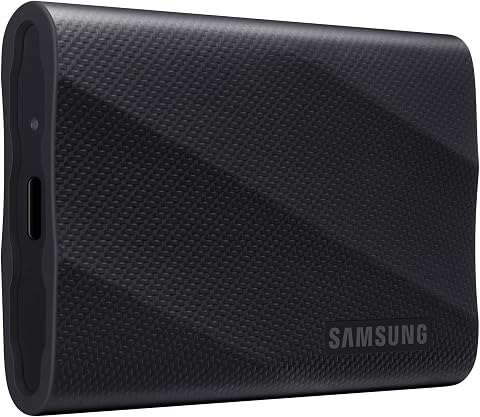
The Samsung T9 is a 4TB portable solid-state drive with read and write speeds of up to 2,000 MB/s when used with a compatible host and cable. It features dynamic thermal management, AES 256-bit hardware encryption, and compatibility with computers, consoles, tablets, and supported iPhones.
Pros:
- Up to 2,000 MB/s read and write speeds with a compatible setup
- Dynamic thermal management helps control heat during heavy use
- AES 256-bit hardware encryption
- Rugged durability with drop resistance up to 9.8 ft
Cons:
- Maximum speeds require a compatible USB 3.2 Gen 2×2 host, cable, and UASP mode
- Host device compatibility may vary
Best for: People who need a portable backup or transfer drive
Not ideal for: Anyone who plans to keep it as their sole backup copy
Bottom line: Use this portable SSD as part of a routine with tested restores and another independent copy.
Hardware encryption USB drive
A hardware-encrypted USB drive can be useful when sensitive files need to travel or when access should require more than simply plugging a drive into a computer. The listed choice is the Apricorn Aegis Padlock 2TB Hardware-Encrypted Portable External Hard D. Because the product name is truncated, verify the exact model and full specifications before purchasing, especially the connection type, supported operating systems, and how its access controls work.
A frequent mistake is assuming that encryption alone makes a backup safe. You still need a reliable copy process, a place to store the drive, and a way to regain access if credentials are forgotten. Confirm recovery and access procedures before placing important data on the device. Check how authentication works in your environment and whether your backup software can write to and restore from the drive as intended.
Think about the actual files and travel pattern involved. A smaller portable device may suit selected documents or a limited set of project materials, while a broader backup may need another destination. Confirm that the stated 2TB capacity fits the data you intend to carry, accounting for the need to retain versions if applicable. Test the drive with your computer and a noncritical sample before trusting it with essential files, and keep any recovery information stored separately and securely.
What to look for:
- Verify the exact full product model and its complete specifications.
- Check connection, operating-system, and backup-software compatibility.
- Understand authentication, recovery, and access procedures before storing files.
- Confirm that 2TB fits the intended data set and version-retention plan.
- Test writing and restoring sample files on the computers you will use.
Apricorn Aegis Padlock 2TB Hardware-Encrypted Portable External Hard Drive

This portable 2TB drive uses 256-bit AES XTS hardware encryption and an integrated keypad for PIN-based access. It connects over USB 3.0, requires no software or administrator rights, and supports up to five user PINs plus an administrator PIN.
Pros:
- Hardware encryption with keypad-based PIN access
- Works without software installation or administrator rights
- Compatible with PC, Mac, and USB-enabled operating systems
- Rugged design with epoxy coating and brute-force self-destruct feature
Cons:
- Uses a rotating 5400 rpm hard drive
- Requires PIN entry through the integrated keypad
Best for: People carrying selected sensitive files between devices
Not ideal for: Anyone who has not planned credential recovery or a second copy
Bottom line: Verify the full model and test access and recovery before using this drive for important data.
Uninterruptible power supply
A UPS can help keep connected equipment powered during an interruption and may give a system time to shut down cleanly. The listed pick is the GoldenMate 1500VA/1200W Lithium UPS Battery Backup & Surge Protector,. Confirm the complete model name and specifications before buying, then list the equipment you expect to connect, such as network gear or storage devices, and check that the total load fits the unit’s stated capacity.
A common mistake is assuming that a UPS replaces a backup or will keep every connected device running for a particular amount of time. Its role is power continuity, not data duplication. Check load and connection needs for each device, including which outlets provide the functions you need and whether your equipment can respond to a power event. If automatic shutdown matters, verify that the UPS and your computer or storage system support a compatible communication and shutdown process.
Plan for placement, outlet access, and maintenance according to the product’s instructions. Consider which devices are essential during an outage rather than connecting everything by default. Test the setup in a controlled way, following the manufacturer’s guidance, and confirm that your storage or computer shuts down as expected. Keep independent backups in place: power protection can support a backup system, but it cannot restore files that were never copied.
What to look for:
- Verify the complete model and product specifications before ordering.
- Add up connected equipment requirements and check them against the stated capacity.
- Confirm outlet arrangement and any communication needed for automatic shutdown.
- Decide which network and storage devices need power protection.
- Follow setup guidance and test the shutdown behavior with noncritical work.
GoldenMate 1500VA/1200W Lithium UPS Battery Backup & Surge Protector, Gray

The GoldenMate UPS uses a LiFePO4 battery pack (51.2 V, 5.8 Ah) that delivers over 10 years of life and more than 3,000 charge cycles, eliminating the need for regular replacements. It provides 1500 VA/1200 W pure sine wave output with Automatic Voltage Regulation, eight widely spaced NEMA outlets, and front‑panel USB‑C/A charging ports, all monitored by an LCD display.
Pros:
- LiFePO4 battery offers >10‑year lifespan and >3,000 charge cycles
- 1500 VA/1200 W pure sine wave output with AVR protects sensitive equipment
- Eight widely spaced outlets plus USB‑C/A charging ports for versatile connectivity
- LCD display provides real‑time monitoring and mute/LCD off control
Cons:
- Heavy at 15 kg and relatively large footprint
- Only supports 90–140 V AC input; generator power may not be recognized
Best for: People protecting connected storage and network equipment from interruptions
Not ideal for: Anyone expecting a UPS to replace backup copies
Bottom line: Match the UPS to the connected load and test shutdown behavior while maintaining separate backups.
External hard drive dock
An external drive dock can make bare drives easier to connect for backup access, data transfer, or other drive-related tasks. The listed pick is the Sabrent 4-Bay USB 3.0 Hard Drive Docking Station, Clone (DS-U3B4). Before buying, verify that the drives you plan to use match the dock’s supported form factors and connection requirements, and check that the computers and operating systems you use can recognize the drives as expected.
Do not confuse a dock with storage capacity: the drives are separate, and the dock does not create copies by itself unless its cloning function is appropriate for the task. The product name includes “Clone,” but confirm how that feature works, which drive combinations it supports, and whether it fits your intended workflow. Check source and destination requirements before attempting any clone, because selecting the wrong drive can put data at risk. Keep a verified backup before testing unfamiliar operations.
Consider whether a four-bay setup matches your routine or adds unnecessary complexity. Label drives clearly, track their contents, and handle them carefully when connecting or removing them. Confirm that the USB 3.0 connection suits your computer and workflow, especially if you expect to move large data sets. Start with noncritical drives, check that files are readable, and document the steps so the process can be repeated reliably.
What to look for:
- Confirm supported drive form factors and connection requirements.
- Check computer and operating-system compatibility over USB 3.0.
- Verify how the cloning feature works and which drive combinations it supports.
- Label source and destination drives clearly before copying or cloning.
- Test drive recognition and file access with noncritical data first.
Sabrent 4-Bay USB 3.0 Hard Drive Docking Station, Clone (DS-U3B4)

This 4-bay SATA docking station supports up to four 2.5” or 3.5” drives for data access, backups, and management. It features USB 3.0 connectivity, trayless drive insertion, offline cloning, and plug-and-play operation for easy setup.
Pros:
- Supports multiple drives for data management and backups
- Offline cloning feature simplifies drive duplication
- Trayless design allows easy drive insertion
Cons:
- Requires external power supply
- No included software or drivers needed but limited advanced features
Best for: People who regularly connect separate drives for backup tasks
Not ideal for: Anyone expecting the dock itself to provide storage or automatic backups
Bottom line: Confirm drive support and cloning steps, then test the dock with noncritical data.
Barcode label printer
Clear labels can make a multi-drive backup routine easier to follow, especially when drives are rotated, stored separately, or assigned different roles. No product is specified for this slot, so choose a barcode label printer based on how you will create and scan identifiers rather than on a particular model. Plan the label system first: decide what each code represents, where the matching record will live, and how you will update it when a drive’s contents change.
A common mistake is labeling a drive with only a vague name or a code that cannot be looked up later. Use a consistent identifier, and keep a separate inventory with the drive’s role, date of last backup, and relevant location or status details. Avoid placing sensitive information directly on a label. Check whether the printer’s labels suit the surfaces and storage conditions you expect, and confirm that its software can create the format your inventory process needs.
Test the full workflow before labeling every drive: print a sample, scan it with the reader or app you intend to use, and confirm that the code leads to the correct record. Keep labels readable and durable enough for routine handling, while ensuring they do not interfere with ports or drive operation. Make the inventory recoverable by keeping a copy separate from the drives it describes.
What to look for:
- Define a consistent identifier and inventory process before choosing a printer.
- Check label material and format for the drive surfaces and storage environment.
- Verify software support for creating the barcode format your process needs.
- Test printed labels with the scanner or app you intend to use.
- Store a separate, recoverable inventory without exposing sensitive details on labels.
Build the setup in a sensible order: first identify the files and systems that matter, then choose a primary backup destination and a separate copy. Add portable or encrypted storage for the jobs they specifically serve, followed by a UPS if connected equipment needs power continuity. Consider a drive dock or labeling workflow when they solve a recurring handling or organization problem. Prioritize recoverable copies first, then add convenience tools around that foundation.
You do not need to deploy every category at once. Start with a manageable routine, document where each copy lives, and test a restore before expanding the setup. Review compatibility whenever your computer, software, or storage arrangement changes. Consistency beats complexity: a simple process you can repeat and verify is a stronger starting point than equipment you have not integrated into a recovery plan.