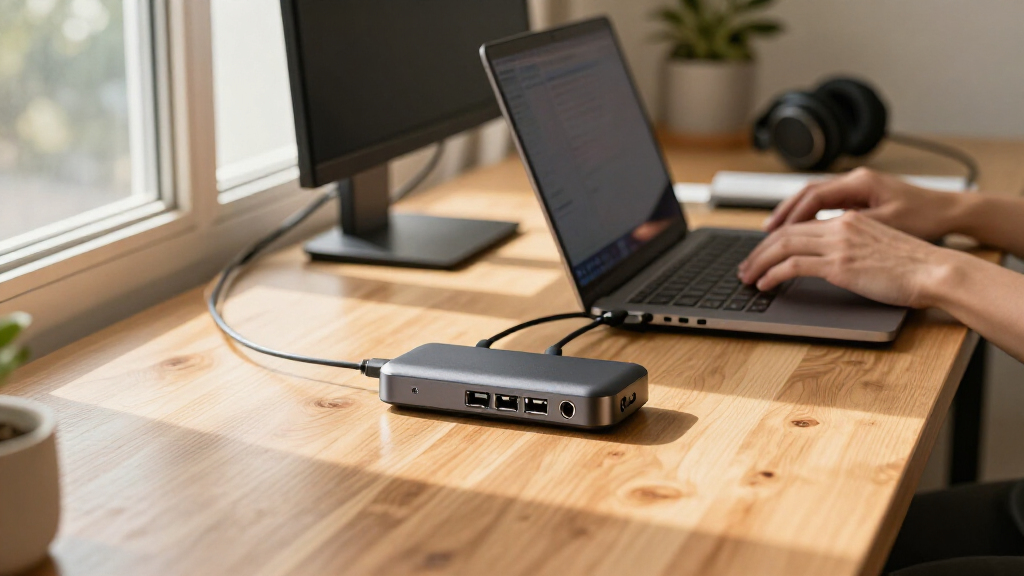

Choosing the right Thunderbolt docking stations can transform a cluttered desk into a streamlined workspace. The Microsoft Surface Thunderbolt 4 Docking Station stands out as the best overall pick for its seamless integration with Windows devices and reliable power delivery. For those needing massive connectivity, the Dell Pro Thunderbolt 4 Smart Dock offers unparalleled port variety, while the Anker Prime TB5 Docking Station leads in future-proofing with Thunderbolt 5 support. Buyers often face a tradeoff between port quantity, power output, and physical footprint. Continue reading to discover which dock aligns with your specific hardware needs and workflow requirements.

Get business pricing on tech for your team
- Business-only prices and quantity discounts
- Tax-exempt purchasing
- Multiple users, one account, clear invoices
Key Takeaways
- Thunderbolt 5 docks like the Anker Prime offer double the bandwidth of Thunderbolt 4, but require compatible laptops to see benefits.
- Power delivery wattage is a critical differentiator; 100W docks may struggle to charge high-performance workstations during heavy loads.
- Enterprise-grade docks from Dell and Microsoft often include management features and superior build quality compared to consumer-focused brands.
- Dual 4K monitor support is standard, but driving three or more displays requires specific GPU configurations and higher-end docking hardware.
- Renewed and bundle options provide significant value for buyers who prioritize budget over having the absolute latest release.
| Microsoft Surface Thunderbolt 4 Docking Station – Black |  | Best for Surface Ecosystem Users | Interface: Thunderbolt 4 | USB Ports: 6 Total (USB-C and USB-A) | Display Support: Up to 2x 4K Monitors | VIEW LATEST PRICE | See Our Full Breakdown |
| Dell Pro Thunderbolt 4 Smart Dock SD25TB4 |  | Best for Enterprise & Multi-Display Workflows | Display Support: Up to 4x 4K Monitors | Power Delivery: Up to 130W (Dell) / 96W (Others) | Connectivity: 2x Thunderbolt 4, HDMI 2.1, 2x DP 1.4 | VIEW LATEST PRICE | See Our Full Breakdown |
| Dell WD19TB Thunderbolt Docking Station with 180W Power Adapter |  | Best High-Wattage Option for Dell Laptops | Power Delivery: 180W Adapter (130W to Laptop) | Display Support: Dual 4K @ 60Hz | Ports: 2x DP 1.4, HDMI 2.0b, USB-C, USB-A | VIEW LATEST PRICE | See Our Full Breakdown |
| Microsoft Surface Thunderbolt 4 High-Speed Docking Station 2-Pack Bundle |  | Best Value for Teams & Bulk Deployment | Bundle Contents: 2 Docks, 2 HDMI Cables, 2-Year Warranty | Display Support: Up to 2x 4K Monitors | Ports: 3x USB-C, 3x USB-A, 2.5G Ethernet | VIEW LATEST PRICE | See Our Full Breakdown |
| Dell WD19TB Thunderbolt Dock – Renewed |  | Best Budget Entry Point | Condition: Renewed | Power Delivery: 180W | Display Support: Dual Monitors | VIEW LATEST PRICE | See Our Full Breakdown |
| Plugable Thunderbolt 4 Dock with 100W Charging, Dual Monitor |  | Best for Mixed-Device Offices | Interface: Thunderbolt 4 | Power Delivery: 100W (96W certified) | Display Support: Dual 4K @ 60Hz or Single 8K | VIEW LATEST PRICE | See Our Full Breakdown |
| Anker Prime TB5 Docking Station, 14-in-1 Thunderbolt 5 Dock for Laptops |  | Best for Future-Proofing | Interface: Thunderbolt 5 | Power Delivery: 140W | Display Support: Dual 8K | VIEW LATEST PRICE | See Our Full Breakdown |
| Plugable Thunderbolt 4 Dock for M4/M5 MacBook Air & Pro, 100W Charging |  | Best for Apple Ecosystem | Interface: Thunderbolt 4 | Power Delivery: 100W | Display Support: Dual 4K HDMI | VIEW LATEST PRICE | See Our Full Breakdown |
| Dell Thunderbolt 4 Dock with 3 Display Outputs |  | Best for Triple Monitor Setups | Interface: Thunderbolt 4 | Power Delivery: 100W | Display Support: Triple 4K @ 60Hz | VIEW LATEST PRICE | See Our Full Breakdown |
| Dell WD19TBS Thunderbolt Dock, USB-C Docking Station Dual Monitor |  | Best Value for Existing Dell Users | Interface: Thunderbolt 3 / USB-C | Power Delivery: 130W | Display Support: Triple 4K or Single 5K | VIEW LATEST PRICE | See Our Full Breakdown |
| thunderbolt docking station | Display Support | Power Delivery | Dimensions | Weight |
|---|---|---|---|---|
| Microsoft Surface Thunderbolt | Up to 2x 4K Monitors | — | 11"L x 4.4"W x 3.2"H | 14.4 ounces |
| Dell Pro Thunderbolt 4 Smart D | Up to 4x 4K Monitors | Up to 130W (Dell) / 96W (Others) | 1.39"L x 3.54"W x 8.07"H | — |
| Dell WD19TB Thunderbolt Dockin | Dual 4K @ 60Hz | 180W Adapter (130W to Laptop) | 8.1 x 3.5 x 1.1 inches | 20.63 ounces |
| Microsoft Surface Thunderbolt | Up to 2x 4K Monitors | — | — | 14.4 ounces (per unit) |
| Dell WD19TB Thunderbolt Dock | Dual Monitors | 180W | — | — |
| Plugable Thunderbolt 4 Dock wi | Dual 4K @ 60Hz or Single 8K | 100W (96W certified) | 8.9"L x 3.3"W x 0.9"H | 2.4 pounds |
| Anker Prime TB5 Docking Statio | Dual 8K | 140W | 4.56"L x 4.56"W x 2.95"H | 2.4 pounds |
| Plugable Thunderbolt 4 Dock fo | Dual 4K HDMI | 100W | 3.3"L x 8.9"W x 0.9"H | 1.3 kg |
| Dell Thunderbolt 4 Dock with 3 | Triple 4K @ 60Hz | 100W | 5.5"L x 3.5"W x 1.2"H | 1.5 pounds |
| Dell WD19TBS Thunderbolt Dock | Triple 4K or Single 5K | 130W | — | — |
More Details on Our Top Picks
Microsoft Surface Thunderbolt 4 Docking Station – Black
This dock is designed specifically for Microsoft Surface devices, offering seamless integration that other universal docks often struggle to match. While the Dell Pro Thunderbolt 4 Smart Dock SD25TB4 offers broader cross-brand compatibility, this Microsoft model prioritizes a cohesive aesthetic and optimized firmware for Surface laptops. It supports dual 4K monitors, which is sufficient for most professional workflows, though it lacks the quad-monitor support found in higher-end Dell business docks. The inclusion of 20% recycled ocean-bound plastic is a nice touch for eco-conscious buyers, but the primary limitation remains its narrow compatibility. If you are not in the Microsoft ecosystem, you will find better value elsewhere, but for Surface owners, the plug-and-play experience is hard to beat.Pros:- Optimized specifically for Microsoft Surface hardware compatibility
- Sustainable construction using recycled ocean-bound plastic
- Clean, minimalist design that matches Surface aesthetics
- Supports two 4K displays for standard productivity needs
Cons:- Limited compatibility with non-Surface laptops
- No support for more than two external monitors
- Higher price point compared to universal third-party alternatives
Best for: Users who exclusively own Microsoft Surface laptops and value aesthetic consistency and optimized firmware.
Not ideal for: Users with mixed-brand setups or those needing support for more than two external displays.
- Interface:Thunderbolt 4
- USB Ports:6 Total (USB-C and USB-A)
- Display Support:Up to 2x 4K Monitors
- Dimensions:11″L x 4.4″W x 3.2″H
- Weight:14.4 ounces
- Sustainability:20% Recycled Ocean-Bound Plastic
Our verdict“Choose this if you are deep in the Microsoft ecosystem and want a dock that looks and feels like part of your Surface setup.”
Dell Pro Thunderbolt 4 Smart Dock SD25TB4
This model stands out for its exceptional display support, allowing up to four 4K monitors, which far exceeds the dual-monitor limit of the Microsoft Surface Thunderbolt 4 Docking Station. It is engineered for demanding professionals, offering 130W USB-C charging to power high-performance workstations without cable clutter. The addition of remote Wi-Fi management via Dell Console makes it a powerful tool for IT departments managing fleets of devices, a feature absent in consumer-focused docks like the Plugable models. However, this power comes with complexity; the extensive feature set may be overkill for casual users. It is also physically smaller than the older WD19TB but requires a modern laptop with Thunderbolt 4 to unlock its full potential, making it a forward-looking investment rather than a universal fix for older hardware.Pros:- Supports up to four 4K displays simultaneously
- High-wattage 130W charging for Dell and compatible laptops
- Remote management capabilities via Wi-Fi and Dell Console
- Compact, ambidextrous design with sustainable materials
Cons:- Requires Thunderbolt 4 compatible laptops for full functionality
- Complex feature set may be unnecessary for basic users
- Premium pricing reflects enterprise-level features
Best for: IT professionals and power users who manage multiple devices or need quad-monitor setups for creative or data-intensive work.
Not ideal for: Casual home users who only need one or two monitors and do not require remote management features.
- Display Support:Up to 4x 4K Monitors
- Power Delivery:Up to 130W (Dell) / 96W (Others)
- Connectivity:2x Thunderbolt 4, HDMI 2.1, 2x DP 1.4
- Network:2.5GbE Ethernet
- Management:Remote Wi-Fi Management
- Dimensions:1.39″L x 3.54″W x 8.07″H
Our verdict“This is the definitive choice for enterprise environments and power users who need maximum display real estate and remote manageability.”
Dell WD19TB Thunderbolt Docking Station with 180W Power Adapter
The Dell WD19TB remains a robust choice for those needing 180W power delivery, which is significantly higher than the 130W offered by the newer Dell Pro Thunderbolt 4 Smart Dock SD25TB4. This makes it ideal for powering large desktop-replacement laptops or workstations that draw substantial power. It supports Thunderbolt 3, ensuring broad compatibility with a wide range of Dell Latitude, XPS, and Precision series devices. While it lacks the Thunderbolt 4 speed and quad-monitor support of its successor, it offers reliable dual-display performance and a comprehensive array of legacy ports. The main drawback is its physical footprint; it is bulkier and heavier than modern compact docks, making it less suitable for users who move their dock between home and office frequently. It is a workhorse, not a travel companion.Pros:- High 180W power delivery for demanding workstations
- Extensive port selection including multiple USB-A and DisplayPorts
- Proven reliability with Dell enterprise hardware
- Supports dual 4K displays at 60Hz
Cons:- Bulky form factor limits portability
- Limited to Thunderbolt 3 speeds
- Optimized primarily for Dell hardware
Best for: Users with high-power Dell workstations who need maximum charging wattage and legacy port compatibility.
Not ideal for: Users seeking a compact, portable dock or those who need Thunderbolt 4 speeds for future-proofing.
- Power Delivery:180W Adapter (130W to Laptop)
- Display Support:Dual 4K @ 60Hz
- Ports:2x DP 1.4, HDMI 2.0b, USB-C, USB-A
- Dimensions:8.1 x 3.5 x 1.1 inches
- Weight:20.63 ounces
- Compatibility:Dell Latitude, XPS, Precision
Our verdict“Pick this dock if you have a power-hungry Dell workstation and prioritize charging capacity over portability or latest-generation speeds.”
Microsoft Surface Thunderbolt 4 High-Speed Docking Station 2-Pack Bundle
This bundle offers the same core functionality as the single Microsoft Surface Thunderbolt 4 Docking Station but includes extended protection and HDMI cables, making it a practical choice for outfitting small teams or home offices. Buying in bulk often reduces the per-unit overhead, and the inclusion of 2-year extended warranty adds a layer of security that single-purchase docks typically lack. Like its single counterpart, it supports dual 4K monitors and features raised tactile port indicators, which aid in quick connectivity. However, the limitations remain identical to the standalone model: it is locked into the Microsoft ecosystem for optimal performance and does not support the quad-monitor setups seen in the Dell Pro Thunderbolt 4 Smart Dock. It is a convenience play for Microsoft-centric environments looking to streamline procurement.Pros:- Includes 2-year extended protection plan
- Bundled with HDMI cables for immediate setup
- Tactile port indicators for easy connection
- Eco-friendly design with recycled materials
Cons:- Same limited compatibility as the single unit
- Higher upfront cost for single-user scenarios
- No advantage over single purchase if you only need one dock
Best for: Businesses or households deploying multiple Surface devices that need bundled warranties and accessories.
Not ideal for: Individual users who only need one dock or those who require cross-platform compatibility.
- Bundle Contents:2 Docks, 2 HDMI Cables, 2-Year Warranty
- Display Support:Up to 2x 4K Monitors
- Ports:3x USB-C, 3x USB-A, 2.5G Ethernet
- Weight:14.4 ounces (per unit)
- Material:20% Recycled Ocean-Bound Plastic
- Compatibility:Microsoft Surface Devices
Our verdict“Ideal for organizations standardizing on Surface devices that want to simplify purchasing and ensure long-term coverage.”
Dell WD19TB Thunderbolt Dock – Renewed
This renewed version of the Dell WD19TB offers a cost-effective entry into high-end docking, retaining the 180W power delivery and dual monitor support of the original. For users who cannot justify the premium price of the new Dell Pro Thunderbolt 4 Smart Dock SD25TB4, this provides nearly identical core connectivity at a lower barrier to entry. It supports Thunderbolt 3 and includes essential ports like HDMI, DisplayPort, and Ethernet. However, buying renewed carries inherent risks; while functional, the condition may vary, and the warranty is often shorter or more restrictive than new units. It is a pragmatic choice for budget-conscious professionals who understand the tradeoff between cost and the certainty of a new, full-warranty product.Pros:- Significant cost savings compared to new units
- Retains 180W power delivery capability
- Includes dual monitor support and extensive ports
- Plug-and-play setup for compatible Dell systems
Cons:- Renewed status implies potential cosmetic wear
- Limited warranty compared to new products
- Lacks Thunderbolt 4 speeds and quad-monitor support
Best for: Budget-conscious users who need high-wattage Dell docking features and are comfortable with refurbished hardware.
Not ideal for: Users who prioritize pristine condition, long-term warranty coverage, or the latest Thunderbolt 4 standards.
- Condition:Renewed
- Power Delivery:180W
- Display Support:Dual Monitors
- Ports:HDMI, DisplayPort, USB-C, USB-A, Ethernet
- Compatibility:Dell XPS, Latitude, Vostro
- OS Requirement:Windows 10/11
Our verdict“A smart financial move for those who need Dell’s high-power docking features without paying the premium for a brand-new unit.”
Plugable Thunderbolt 4 Dock with 100W Charging, Dual Monitor
This Plugable Thunderbolt 4 Dock stands out for its driverless design and broad compatibility, making it a strong choice for environments with a mix of Windows and Mac laptops. Unlike the Dell Thunderbolt 4 Dock, which often assumes a Dell-centric ecosystem, this unit works seamlessly across brands, including Framework and Microsoft Surface devices. It offers 13 ports, including two HDMI outputs for dual 4K monitors, which is sufficient for most productivity setups. However, base M1 and M2 MacBooks are limited to a single external display, a significant constraint for newer Mac users. The build is compact at 2.4 pounds, but the reliance on specific macOS versions for dual-display support requires careful checking of your hardware before purchase.Pros:- Driverless setup reduces IT deployment friction across Windows and macOS
- Broad compatibility with non-Dell brands like Framework and Microsoft Surface
- Certified for Intel Evo, ensuring reliable 40Gbps throughput
- Includes a downstream Thunderbolt 4 port for daisy-chaining or high-speed peripherals
Cons:- Base M1/M2 MacBooks are limited to a single external display
- Dual-display support on macOS requires specific Pro/Max chips or clamshell mode
- Plastic chassis may feel less premium than aluminum alternatives
Best for: IT managers and freelancers managing mixed fleets of Windows and Mac devices who need a standardized, driver-free docking solution.
Not ideal for: Users with base-model M1 or M2 MacBooks who require dual external monitors, as these machines only support one display over Thunderbolt.
- Interface:Thunderbolt 4
- Power Delivery:100W (96W certified)
- Display Support:Dual 4K @ 60Hz or Single 8K
- Port Count:13 Ports
- Weight:2.4 pounds
- Dimensions:8.9″L x 3.3″W x 0.9″H
- OS Compatibility:Windows 10+, macOS 11+
Our verdict“Choose this dock if you need a reliable, cross-platform solution for a mixed device environment, but verify your Mac chip supports dual displays first.”
Anker Prime TB5 Docking Station, 14-in-1 Thunderbolt 5 Dock for Laptops
The Anker Prime TB5 is built for those who want to stay ahead of the curve, leveraging Thunderbolt 5 for up to 120Gbps data transfer. This is a massive leap over the 40Gbps offered by the Plugable Thunderbolt 4 Dock, making it ideal for handling massive video files or external GPU setups without bottlenecks. It supports dual 8K displays, a capability that most current TB4 docks struggle to deliver reliably. However, this power comes with a catch: it requires a Thunderbolt 5 or 4 host to reach full potential, and the active cooling system adds bulk and weight. If your laptop is older, you are paying for bandwidth you cannot yet use.Pros:- Thunderbolt 5 connectivity provides up to 120Gbps bandwidth
- Supports dual 8K displays, offering superior future-proofing
- Active cooling system maintains performance during heavy loads
- 140W power delivery handles the most demanding workstations
Cons:- Requires Thunderbolt 5 or 4 compatible laptops for full functionality
- Active cooling adds weight and potential noise under load
- Premium positioning may be overkill for standard office tasks
Best for: Creative professionals with Thunderbolt 5-capable laptops who need extreme bandwidth for 8K video editing or external storage arrays.
Not ideal for: Owners of older laptops with only USB-C or Thunderbolt 3/4 ports, as you will not benefit from the TB5 speeds.
- Interface:Thunderbolt 5
- Power Delivery:140W
- Display Support:Dual 8K
- Data Transfer:Up to 120Gbps
- Port Count:14 Ports
- Weight:2.4 pounds
- Dimensions:4.56″L x 4.56″W x 2.95″H
- Cooling:Active Cooling System
Our verdict“This is the definitive choice for early adopters with TB5 hardware, but it is wasted money on older machines.”
Plugable Thunderbolt 4 Dock for M4/M5 MacBook Air & Pro, 100W Charging
Tailored specifically for the latest MacBooks, this Plugable Thunderbolt 4 Dock removes the guesswork for M4 and M5 chip users. While it shares the same core architecture as the standard Plugable model, its marketing and validation focus heavily on macOS compatibility, ensuring plug-and-play dual 4K support without the driver headaches sometimes seen on Windows. Compared to the Anker Prime TB5, this dock is more compact and quieter, lacking the active fans that can distract in a quiet studio. It offers 13 ports, covering all the essentials for a MacBook workspace. The tradeoff is that it remains locked to Thunderbolt 4 speeds, so if you are buying for a future-proofed TB5 Mac, this might become a bottleneck sooner rather than later.Pros:- Validated for M4/M5 MacBooks, ensuring reliable dual-display output
- Driverless operation simplifies setup for non-technical users
- Compact form factor fits neatly under most laptop stands
- 100W charging supports even the power-hungry MacBook Pro models
Cons:- Limited to Thunderbolt 4 bandwidth, missing out on TB5 speeds
- Base M1/M2 MacBooks still face single-display limitations
- Less feature-rich than the Anker Prime TB5 for extreme bandwidth needs
Best for: MacBook Pro and Air users with M4 or M5 chips who want a verified, driverless dual-monitor setup with zero configuration.
Not ideal for: Windows users or those with older MacBooks who need broader OS validation or cheaper alternatives.
- Interface:Thunderbolt 4
- Power Delivery:100W
- Display Support:Dual 4K HDMI
- Port Count:13 Ports
- Weight:1.3 kg
- Dimensions:3.3″L x 8.9″W x 0.9″H
- OS Compatibility:macOS 13+, Windows 11
Our verdict“The safest bet for new MacBook owners who prioritize ease of use and reliability over bleeding-edge bandwidth.”
Dell Thunderbolt 4 Dock with 3 Display Outputs
If your workflow demands three 4K monitors, this Dell Thunderbolt 4 Dock is a rare find that delivers without requiring a Dell-specific proprietary port. It combines two HDMI ports and one DisplayPort to achieve this triple-display setup, a feature that distinguishes it from the dual-display Plugable Thunderbolt 4 Dock. The build quality is typical of Dell’s enterprise gear—solid and utilitarian. However, it is heavily optimized for the Dell ecosystem; while it works with other Thunderbolt 4 laptops, firmware updates and support are best experienced on Dell hardware. It lacks the high-wattage charging of the Anker Prime, capping out at 100W, which is fine for most ultrabooks but may struggle with high-end mobile workstations.Pros:- Supports triple 4K display outputs (2x HDMI, 1x DisplayPort)
- Robust build quality consistent with Dell’s enterprise standards
- Gigabit Ethernet ensures stable wired networking
- 100W power delivery suits most modern ultrabooks
Cons:- Optimized for Dell devices; other brands may face firmware quirks
- No audio output option other than the standard 3.5mm jack
- Lacks the future-proofing of Thunderbolt 5 models
Best for: Data analysts and developers who need three external 4K monitors and primarily use Dell laptops.
Not ideal for: Users with non-Dell laptops who want seamless firmware support or those needing more than 100W charging.
- Interface:Thunderbolt 4
- Power Delivery:100W
- Display Support:Triple 4K @ 60Hz
- Video Ports:2x HDMI, 1x DisplayPort
- Weight:1.5 pounds
- Dimensions:5.5″L x 3.5″W x 1.2″H
- Network:1Gbps Ethernet
Our verdict“A solid choice for triple-monitor productivity, provided you are already invested in the Dell hardware ecosystem.”
Dell WD19TBS Thunderbolt Dock, USB-C Docking Station Dual Monitor
The Dell WD19TBS is a workhorse that bridges the gap between older USB-C laptops and modern Thunderbolt 4 standards. It supports triple 4K displays or a single 5K display, matching the versatility of the newer Dell Thunderbolt 4 Dock but at a likely more accessible price point for refurbished or older stock. It includes necessary cables, reducing the initial setup hassle compared to the Anker Prime TB5, which often requires separate purchases for specific high-speed cables. The 130W power delivery is a standout feature, easily handling power-hungry mobile workstations. However, the design is dated, and the reliance on Windows 10+ limits its appeal for macOS users who might prefer the native support found in Plugable models.Pros:- High 130W power delivery supports demanding mobile workstations
- Supports triple 4K or single 5K display configurations
- Includes necessary connection cables for immediate setup
- Proven reliability in enterprise environments
Cons:- Design is bulkier and less modern than newer compact docks
- Primarily optimized for Windows 10+ and Dell hardware
- Lacks Thunderbolt 4/5 certification for maximum bandwidth guarantee
Best for: Owners of older Dell laptops or those needing high-wattage charging (130W) without paying for Thunderbolt 5 features.
Not ideal for: macOS users or those with non-Dell hardware who want seamless, modern driverless compatibility.
- Interface:Thunderbolt 3 / USB-C
- Power Delivery:130W
- Display Support:Triple 4K or Single 5K
- Port Count:11 Ports
- Included Cables:Yes
- OS Compatibility:Windows 10+
- Warranty:1 Year
Our verdict“A reliable, high-wattage option for Dell users who need triple-monitor support without the latest interface standards.”

How We Picked
I evaluated these Thunderbolt docking stations based on three primary pillars: connectivity versatility, power delivery reliability, and compatibility breadth. Connectivity was judged not just by port count, but by the utility of those ports—such as the presence of 2.5GbE Ethernet, multiple display outputs, and high-speed USB-A/C combinations. Power delivery was assessed by looking at maximum wattage and whether the dock can sustain that output while charging peripherals and driving external displays.
Compatibility was the second major factor. I prioritized docks that work seamlessly across both macOS and Windows ecosystems, though some picks are optimized for specific ecosystems like Microsoft Surface or Dell Precision laptops. Finally, I considered long-term value, weighing the cost of entry against the durability of the build and the relevance of the technology (e.g., Thunderbolt 4 vs. 5) for the next five years. This logic ensures the rankings reflect real-world usability rather than just spec-sheet numbers.
| thunderbolt docking station | Interface |
|---|---|
| Microsoft Surface Thunderbolt | Thunderbolt 4 |
| Dell Pro Thunderbolt 4 Smart D | — |
| Dell WD19TB Thunderbolt Dockin | — |
| Microsoft Surface Thunderbolt | — |
| Dell WD19TB Thunderbolt Dock | — |
| Plugable Thunderbolt 4 Dock wi | Thunderbolt 4 |
| Anker Prime TB5 Docking Statio | Thunderbolt 5 |
| Plugable Thunderbolt 4 Dock fo | Thunderbolt 4 |
| Dell Thunderbolt 4 Dock with 3 | Thunderbolt 4 |
| Dell WD19TBS Thunderbolt Dock | Thunderbolt 3 / USB-C |
Factors to Consider When Choosing Thunderbolt Docking Stations
Selecting a docking station is not a one-size-fits-all decision. The right choice depends heavily on your laptop’s capabilities, your monitor setup, and your peripheral ecosystem. Here are the key factors to weigh before making a purchase.Thunderbolt Version and Bandwidth Needs
Understanding the difference between Thunderbolt 4 and Thunderbolt 5 is fundamental. Thunderbolt 4 offers 40Gbps bandwidth, which is sufficient for most dual 4K monitor setups and rapid file transfers. However, if you use professional-grade video editing software or drive multiple 8K displays, Thunderbolt 5 docks like the Anker Prime provide 80Gbps bandwidth, eliminating bottlenecks. Do not buy a TB5 dock unless your laptop supports it, as it will revert to TB4 speeds otherwise. This mismatch wastes money on features you cannot utilize.
Power Delivery and Laptop Requirements
Check your laptop’s power requirements carefully. Many ultrabooks charge at 65W or 85W, making a 100W dock more than sufficient. However, high-performance mobile workstations often require 130W or 180W to maintain full CPU performance while charging. A dock that provides insufficient power will either charge slowly or, worse, fail to charge at all while under load. Always match the dock’s maximum power delivery to your laptop’s maximum input, with a small buffer for peripherals.
Display Support and GPU Limitations
Just because a dock has three video outputs does not mean your laptop can drive three external monitors. This capability depends on your laptop’s GPU and whether it uses integrated or discrete graphics. Intel Iris Xe and Apple M-series chips have specific limits on external display counts. For instance, many M-series MacBooks natively support only two external displays without specialized software like DisplayLink. Verify your laptop’s native display support before assuming the dock’s port count equals your actual capability.
Port Diversity and Peripheral Management
Count the specific ports you use daily. If you rely on legacy USB-A devices, a dock with multiple USB-A ports saves you from dongle hell. Ethernet is another critical factor; 2.5GbE ports are becoming standard and offer faster, more stable connections than Wi-Fi for office environments. Consider also the placement of ports—front-facing ports are convenient for quick plug-ins, while rear-facing ports help keep cables hidden. Prioritize the ports you actually touch over the total number of ports.
Build Quality and Thermal Management
Thunderbolt docks generate heat, especially when delivering high power and driving multiple displays. Cheaper docks may use plastic housings that trap heat, leading to thermal throttling or reduced lifespan. Premium options from Dell and Microsoft often use metal chassis that act as heat sinks, ensuring consistent performance. If your desk is enclosed or poorly ventilated, prioritize a dock with active cooling or a design known for passive thermal efficiency. Longevity is a hidden cost factor in this category.
Frequently Asked Questions
Can I use a Thunderbolt dock with a USB-C only laptop?
Yes, but with significant limitations. Thunderbolt docks are backward compatible with USB-C, but they will not deliver full Thunderbolt speeds or support multiple high-resolution displays. The dock will likely default to USB 3.2 Gen 2 speeds, which may cap video output at 1080p or 4K@60Hz on a single monitor. If your laptop lacks Thunderbolt, you are paying for features you cannot use, so a dedicated USB-C dock is often a better value proposition.
Why does my laptop stop charging when I connect multiple monitors?
This usually happens when the total power draw exceeds the dock’s Power Delivery (PD) budget. Docks share power between charging the laptop and powering connected peripherals like keyboards, mice, and external drives. If you connect high-draw devices, the dock may prioritize peripheral power or reduce laptop charging speed to stay within its total wattage limit. Check if your dock has a dedicated power adapter and ensure your laptop’s power requirements are within the dock’s maximum output minus peripheral consumption.
Do I need a Thunderbolt 5 dock if I have a Thunderbolt 4 laptop?
No, you do not. Thunderbolt 5 is backward compatible, meaning it will work with your TB4 laptop, but it will operate at Thunderbolt 4 speeds (40Gbps). You will not gain any performance benefits from the extra bandwidth. Unless you plan to upgrade your laptop to a TB5-compatible model within the next 12-24 months, investing in a TB5 dock is premature. A high-quality TB4 dock offers the same practical performance for current hardware at a lower cost.
Are renewed Thunderbolt docking stations safe to buy?
Renewed docks can be a smart financial move if purchased from reputable sellers with solid return policies. The main risk is battery degradation in internal components (if any) or worn-out ports that may cause loose connections. However, docks generally have few moving parts and are durable. Ensure the renewal includes a warranty and check the condition grading (e.g., ‘Like New’ vs. ‘Acceptable’). For enterprise-grade docks like Dell or Microsoft, renewed units often maintain high build quality and reliability.
How many monitors can I connect to a single Thunderbolt dock?
Most Thunderbolt 4 docks support up to two 4K displays at 60Hz or one 8K display at 60Hz. Some advanced docks claim support for three displays, but this often requires specific GPU configurations or DisplayLink technology. Apple Silicon Macs, for example, natively support only two external displays on base models, regardless of the dock’s capabilities. Always verify your laptop’s native GPU output limits before purchasing a dock with multiple video ports, as the dock cannot override hardware restrictions.
Conclusion
Choosing the right Thunderbolt docking stations comes down to matching your specific workflow with the right hardware capabilities. For most Windows users, the Microsoft Surface Thunderbolt 4 Docking Station remains the best overall choice due to its balance of power, design, and ecosystem integration. If you need maximum future-proofing and have a cutting-edge laptop, the Anker Prime TB5 Docking Station is the best premium option for its bandwidth headroom. Budget-conscious buyers or those equipping multiple stations should look at the Microsoft Surface 2-Pack Bundle for its best value proposition. For enterprise environments requiring robust management and sustainability, the Dell Pro Thunderbolt 4 Smart Dock stands out. Beginners should prioritize simplicity and compatibility, making the standard Plugable Thunderbolt 4 Dock a reliable, no-nonsense choice.
Black Friday Picks

Kindle Paperwhite (12th Generation, 2024), 16 GB, 7-inch Display, Black
As an affiliate, we earn on qualifying purchases.